




| Screen State | Display | Description |
|---|---|---|
| Power On |  |
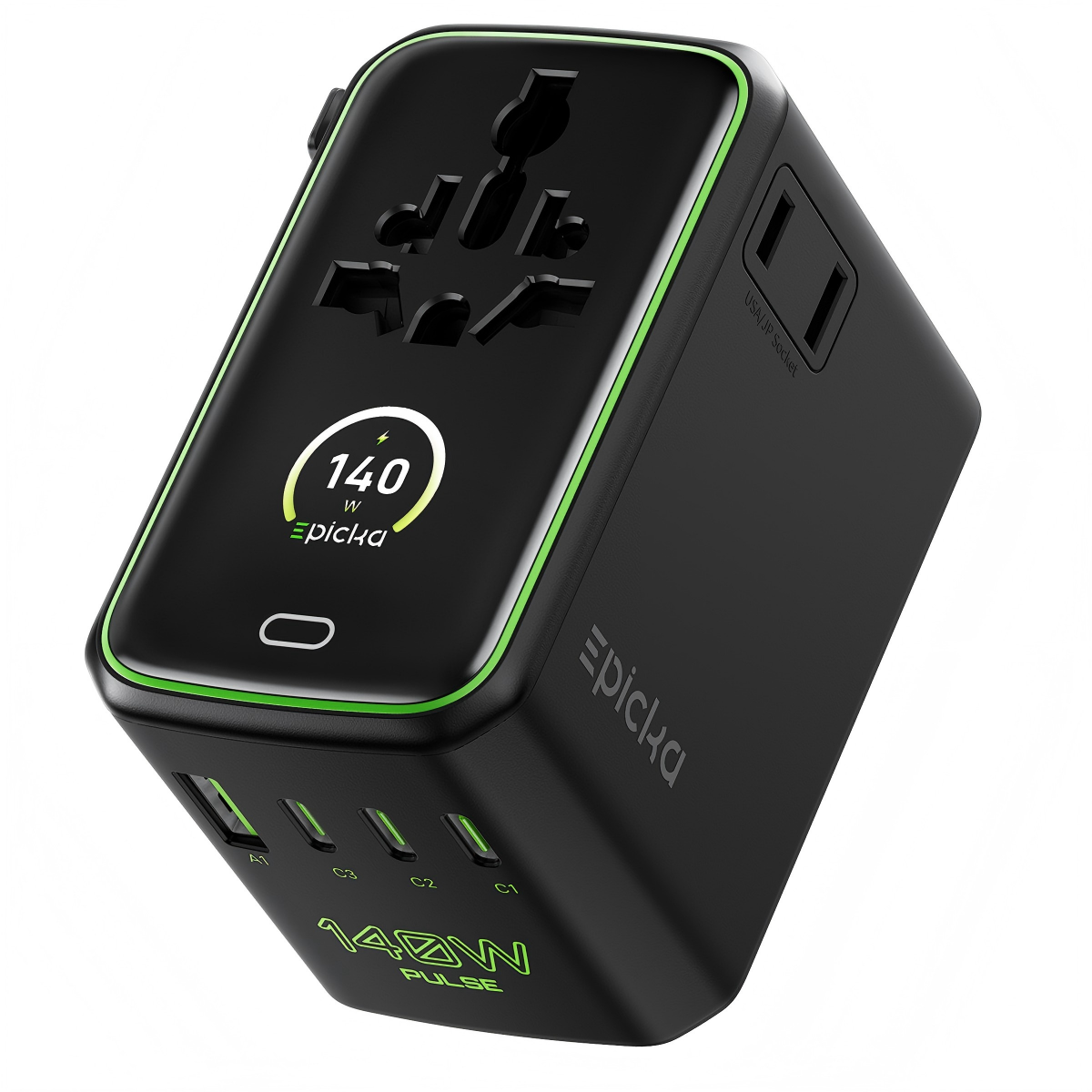
When connected to power, the screen displays the brand logo, then shows total power output. |
| Total DC Power |   |
With no DC or AC load connected, the screen shows total power counting down to 0W within 2 seconds, then turns off after 60 seconds. |
| Real-Time Charging Power |  |
With a DC load connected, the screen displays real-time charging power. |
| 70W Full Power Output | |
When total output reaches 70W, the screen displays a full-power indicator. |
| USB Port Power |  |
|
| AC Output |  |
When an AC device is connected, the display shows real-time voltage (V), power (W), and current (A). |
| AC Overload Reminder | |
≤10A · Normal The display stays green. |
 |
11–15A · Overload The display turns orange. |
|
 |
≥16A · Severe Overload The display turns red and flashes. |
|
 |
>23A · Fuse Protection The fuse blows to protect the device. All AC readings show “0” and the screen turns red — replace the fuse. |
|
| AI Smart Temperature Control |    |
Tap the touch button to view the current status of AI Smart Temperature Control. |
| Total Usage Time |  |
Once cumulative charging time passes 1 hour, the screen displays the charger’s total usage time. |
| DC Load Connected |  |
When the charger is powered and in output mode, the screen shows a charging expression. |
| DC Load Disconnected(before screen off) |  |
When the charger is powered but not in output mode, the screen shows an idle expression. |